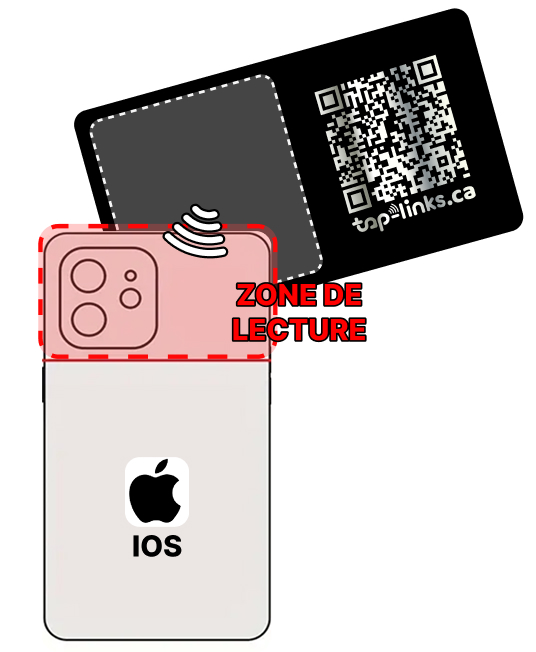
On iPhone
Position the card at the top back of your iPhone, near the camera module
Premium usage guide
The elegance of metal combined with the power of NFC technology
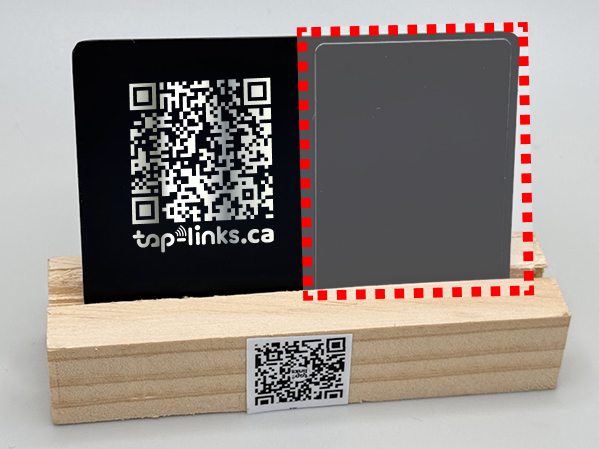
The NFC area is localized. The QR code opens the same Tap-Links profile if the phone does not detect NFC.
iPhone and Android
Position the card at the top back of your iPhone, near the camera module
Center or top back of the phone - area varies by model

If nothing happens
Metal gives the card its premium look, rigidity and high-end feel. Because metal can limit NFC waves, the card uses a specific NFC area on the back. Once you learn the right gesture, scanning is fast and reliable.